Admin Interface
Many web applications ship with an “admin area”, where privileged users can view and modify content. By introspecting your application’s models, flask-peewee can provide you with straightforward, easily-extensible forms for managing your application content.
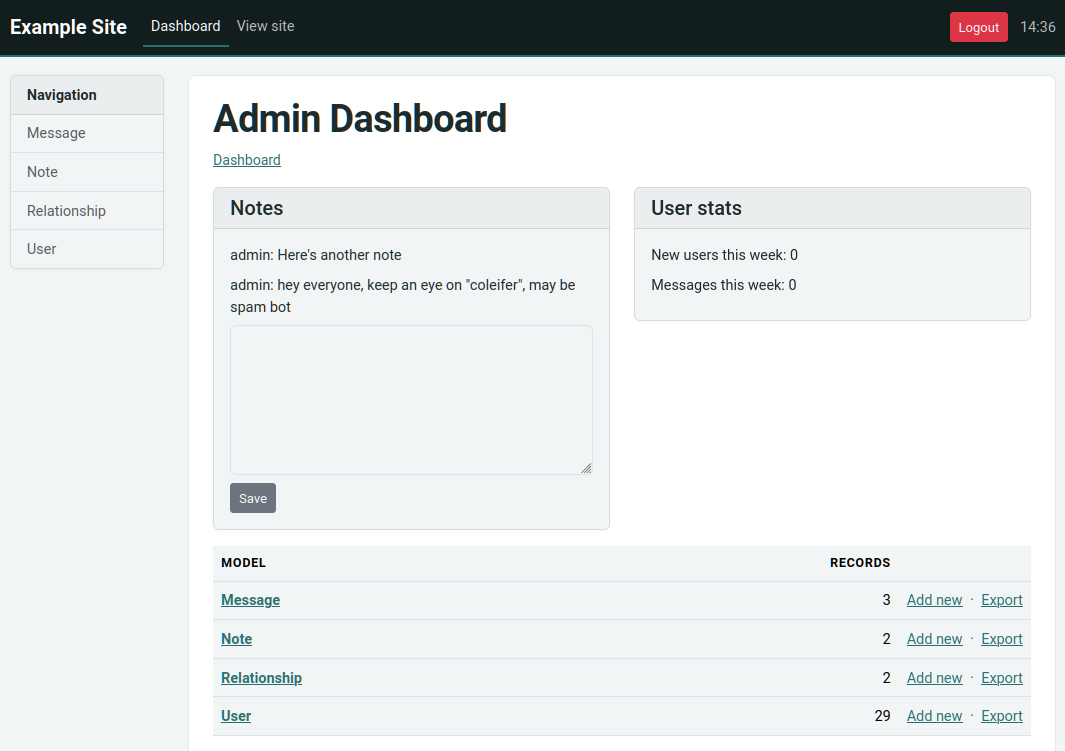
Here’s a screen-shot of the admin dashboard:
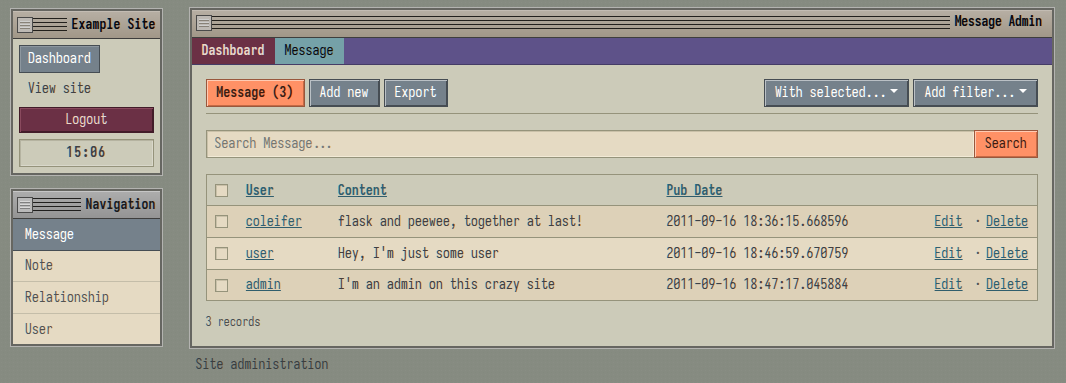
You can also try out a custom theme. Here is the crux theme:
Getting started
To get started with the admin, there are just a couple steps:
Instantiate an
Authbackend for your project. This component provides the security for the admin areafrom flask import Flask from flask_peewee.auth import Auth from flask_peewee.db import Database app = Flask(__name__) db = Database(app) # needed for authentication auth = Auth(app, db)
Instantiate an
Adminobject# continued from above... from flask_peewee.admin import Admin admin = Admin(app, auth)
Register any
ModelAdminorAdminPanelobjects you would like to expose via the admin# continuing... assuming "Blog" and "Entry" models admin.register(Blog) # register "Blog" with vanilla ModelAdmin admin.register(Entry, EntryAdmin) # register "Entry" with a custom ModelAdmin subclass # assume we have an "AdminPanel" called "NotePanel" admin.register_panel('Notes', NotePanel)
Call
Admin.setup(), which registers the admin blueprint and configures the urls# after all models and panels are registered, configure the urls admin.setup()
Note
For a complete example, check the example app which ships with the project.
Customizing how models are displayed
We’ll use the “Message” model taken from the example app, which looks like this:
class Message(db.Model):
    user = ForeignKeyField(User)
    content = TextField()
    pub_date = DateTimeField(default=datetime.datetime.now)

    def __str__(self):
        return '%s: %s' % (self.user, self.content)
Register this model with the admin:
admin = Admin(app, auth)
admin.register(Message)

admin.setup()
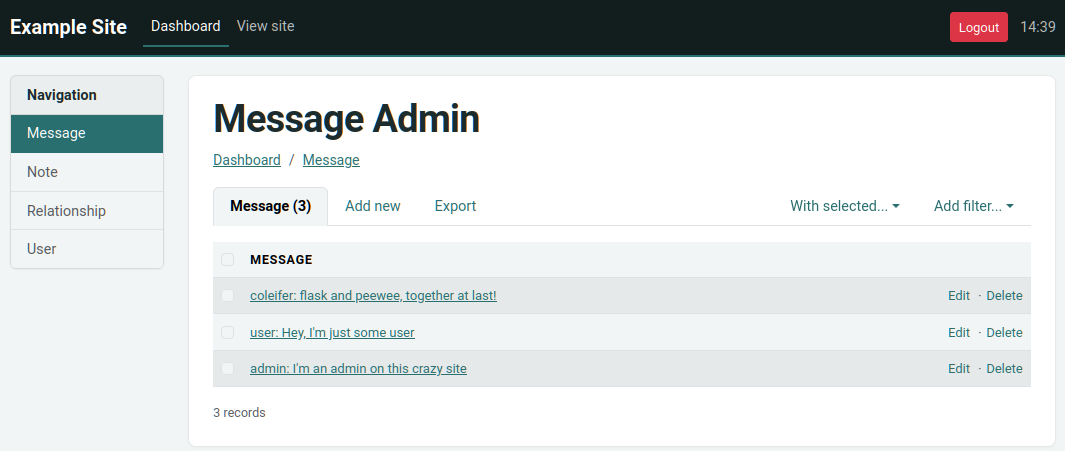
A quick way to improve the appearance of this view is to specify which columns
to display in the list-view. To start customizing how the Message model is
displayed in the admin, we’ll subclass ModelAdmin.
from flask_peewee.admin import ModelAdmin

class MessageAdmin(ModelAdmin):
    columns = ('user', 'content', 'pub_date',)
    foreign_key_lookups = {'user': 'username'}
    filter_fields = ('user', 'content', 'pub_date', 'user__username')
    search_fields = ('content', 'user__username')

admin.register(Message, MessageAdmin)

admin.setup()
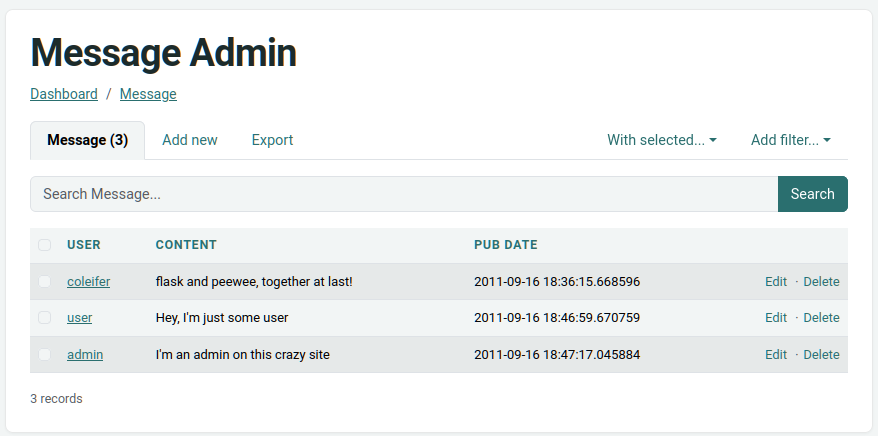
Now the admin shows all the columns and they can be clicked to sort the data. Filtering is available, as is search:
Columns are not limited to field names. A name in columns may also be a
model method, or a ModelAdmin method taking the row instance, and the
return value is displayed. A ModelAdmin method with the same name as a
field takes precedence over the field, so a column’s display can be overridden
without renaming it. Computed columns are not sortable. Headers come
from the name, so word_count becomes “Word Count”. Return a
markupsafe.Markup to display HTML, as the thumbnail column in
Handling File Uploads does.
class MessageAdmin(ModelAdmin):
    columns = ('user', 'content', 'posted',)

    def posted(self, obj):
        return obj.pub_date.strftime('%b %d, %Y')

class EntryAdmin(ModelAdmin):
    columns = ('title', 'status',)

    # same name as the field, so the column shows this instead
    def status(self, obj):
        return STATUS_LABELS[obj.status]
Searching
Set search_fields to add a quick-search box above the list. It runs a
case-insensitive substring match over char/text fields and supports __
traversal into related models, so ('content', 'user__username') searches
both the message body and the author’s username, joining User automatically:
class MessageAdmin(ModelAdmin):
    columns = ('user', 'content', 'pub_date',)
    search_fields = ('content', 'user__username')
Leaving search_fields empty (the default) hides the search box entirely.
Filtering
The list and export views expose per-field filters (equals, less-than, contains, etc., chosen by field type). By default every field is filterable. Two attributes narrow that:
filter_fields: a whitelist of the only fields that may be filteredfilter_exclude: a blacklist of fields to hide from filtering
Both accept __ notation for related fields, so
filter_exclude = ('user__password',) keeps a sensitive related column out of
the filter UI entirely.
Count-free pagination
The list view runs COUNT(*) to number its pages, and the dashboard and
index tab count the table again. On a huge table those counts can cost more
than the page itself, so set paginate_count = False on the ModelAdmin
to skip them. The list view then paginates with previous/next links alone and
no record counts are displayed for the model.
Restricting the queryset
Suppose privacy is a concern, and under no circumstances should a user be able
to see another user’s messages, even in the admin. This can be done by
overriding the get_query() method:
def get_query(self):
    # The auth framework sets the currently-authenticated user as g.user:
    return self.model.select().where(self.model.user == g.user)
Now a user will only be able to interact with their own messages in the admin.
Restricting access
Access to the admin is controlled by Admin.check_user_permission(),
which by default requires user.admin. Per-model permissions can be
controlled by the following attrs on a ModelAdmin:
can_addcan_editcan_delete
By default all per-model permissions are enabled. Turning all three off makes a model read-only:
class MessageAdmin(ModelAdmin):
    can_add = can_edit = can_delete = False
The flags are checked via the following hooks, each of which takes a user
argument:
class MessageAdmin(ModelAdmin):
    def check_edit(self, user):
        # Only the user named 'admin' may edit messages.
        return user.username == 'admin'
To restrict what data is shown, see the get_query()
example above.
Customizing forms
Admin forms use wtf-peewee, which
provides peewee integration for wtforms.
The add and edit forms are built by wtf-peewee’s model_form.
Which model fields appear on the form is controlled by fields (a
whitelist) and exclude (a blacklist). Example:
class MessageAdmin(ModelAdmin):
    # Assume this is set automatically by the model code and should
    # not be editable.
    exclude = ('pub_date',)
To make simple overrides to the default add/edit form, use
ModelAdmin.field_args:
from wtforms.validators import Length

class MessageAdmin(ModelAdmin):
    field_args = {
        'content': {
            'label': 'Body',
            'validators': [Length(min=10)]
        },
    }
For full control, return any form class from get_form().
This example shows how to add a file upload widget to a form (see also
Handling File Uploads):
class PhotoAdmin(ModelAdmin):
    columns = ['image', 'thumb']

    def get_form(self, adding=False):
        class PhotoForm(Form):
            image = HiddenField()
            image_file = FileField('Image file')

        return PhotoForm

    def save_model(self, instance, form, adding=False):
        instance = super(PhotoAdmin, self).save_model(instance, form, adding)
        if 'image_file' in request.files:
            file = request.files['image_file']
            instance.save_image(file)
        return instance
To change how a field type is rendered, subclass the form converter and
point form_converter at it. Here every TextField renders as a
single-line input instead of a textarea:
from flask_peewee.admin import AdminModelConverter
from peewee import TextField
from wtforms import fields

class SingleLineConverter(AdminModelConverter):
    def __init__(self, *args, **kwargs):
        super(SingleLineConverter, self).__init__(*args, **kwargs)
        self.defaults[TextField] = fields.StringField

class MessageAdmin(ModelAdmin):
    form_converter = SingleLineConverter
Readonly fields and fieldsets
readonly_fields lists fields to display as static data on the edit view.
Readonly fields are resolved like a list column, and can be a field, model
attribute, callable, or ModelAdmin method.
fieldsets groups the form into sections, rendered in order. Each entry
is a (label, options) pair. The options dict lists the section’s
fields and may set collapsed, which renders the section as a closed
<details> element. A None label makes an unlabeled section. Fields
left out of every entry render in a trailing unlabeled section. Readonly
names may appear in a fieldset and render as value rows there.
class EntryAdmin(ModelAdmin):
    readonly_fields = ('created',)
    fieldsets = [
        ('Content', {'fields': ('title', 'body')}),
        ('Meta', {'fields': ('created',), 'collapsed': True}),
    ]
Overriding Admin Templates
Use the ModelAdmin.get_template_overrides() method to override templates
for an individual Model:
class MessageAdmin(ModelAdmin):
    # ...

    def get_template_overrides(self):
        # override the edit template with a custom one
        return {'edit': 'messages/admin/edit.html'}

admin.register(Message, MessageAdmin)
This instructs the admin to use a custom template for the edit page in the Message admin. That template is stored in the application’s templates. It might look something like this:
{% extends "admin/models/edit.html" %} {# override the default edit template #}

{# override any blocks here #}
There are five templates that can be overridden:
index
add
edit
delete
export
Templates resolve through flask’s loader, so a file in your application’s
templates/ directory shadows the packaged one of the same name.
Shipping your own auth/login.html restyles the login page the same
way. The auth pages extend base.html, your application’s if it
defines one, else a minimal fallback shipped with flask-peewee.
For smaller changes, extend a packaged template and override its blocks:
admin/base.html:title,theme_css,extra_script,body_class,sidebar,content_title,breadcrumbs,pre_content,content,footerthe model templates (
admin/models/*.html):extra_tabs,export_action,export_tab,tab_index_class,tab_add_class,tab_export_class,extra_form,object_actions,object_action_linksadmin/panels/default.html:panel_title,panel_content
Foreign key display
By default a foreign key renders as a <select> of the related rows.
In filters, the
<select>is automatically limited to the first 20 rows (plus whichever row is currently selected), so the page stays small, but only those 20 rows are reachable.In model forms (add/edit), the
<select>is not limited. Every related row is rendered.
To handle large related tables, foreign_key_lookups allows a mapping from
foreign-key field name to the related field to search and display. This
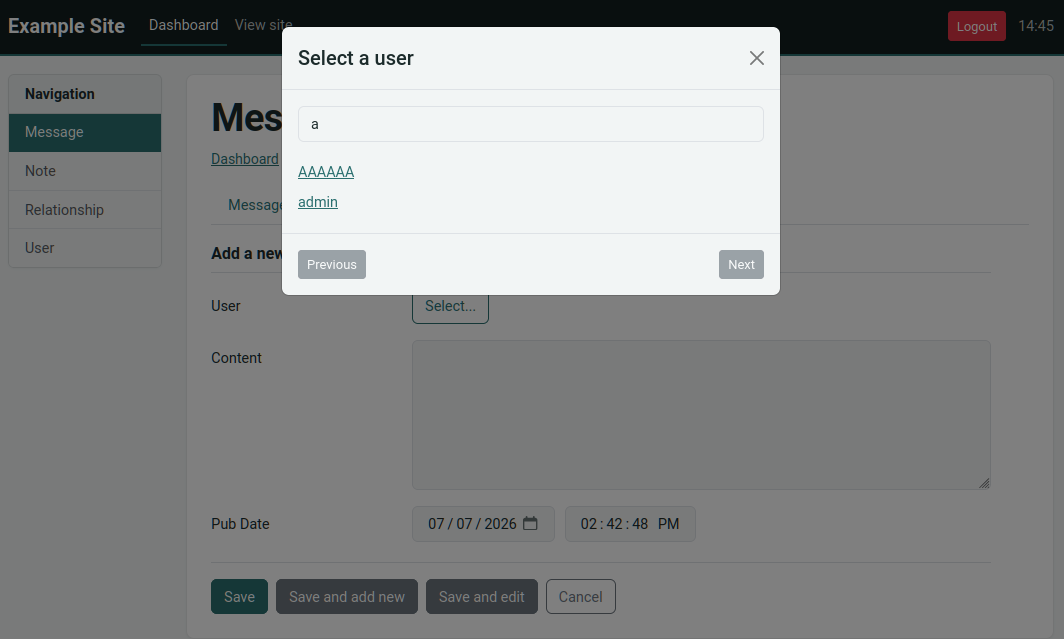
replaces the plain <select> with a paginated, type-ahead search backed by
the model admin’s ajax_list endpoint (matching <field> LIKE '%query%',
a page at a time), so any row is reachable no matter how large the table:
class MessageAdmin(ModelAdmin):
    columns = ('user', 'content', 'pub_date',)
    foreign_key_lookups = {'user': 'username'}
In both contexts the candidate rows come from the related model’s registered
admin (if one exists), determined by its get_query().
Specifying foreign-key lookups is a best practice when the related table is large. The select is replaced by the current value and a Select button:
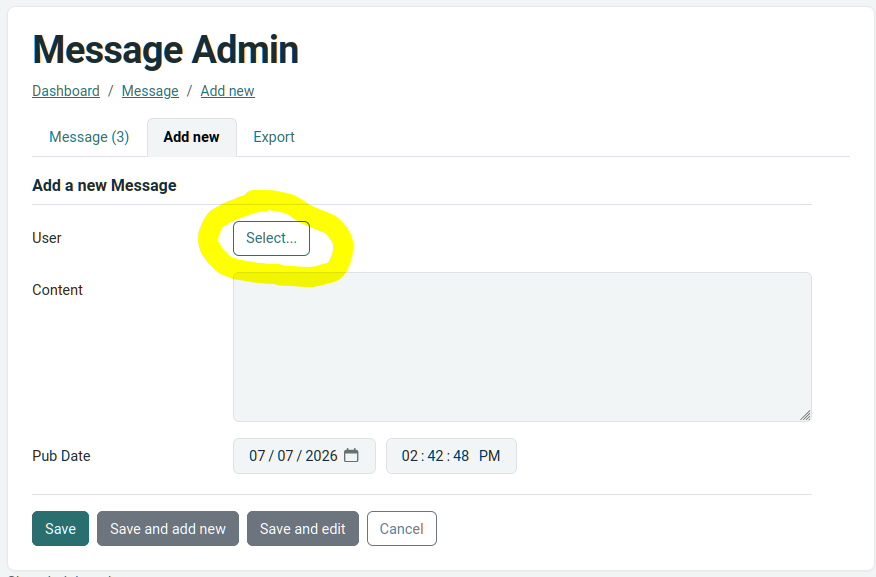
The button opens a paginated, searchable picker:
Bulk actions
Every row in the list view has a checkbox, and the “With selected…”
dropdown offers “Export” and “Delete” out-of-the-box. You can add your own
bulk operations by subclassing Action and referencing them in your
ModelAdmin’s actions attribute.
An action implements a single callback(self, id_list) method, which receives
the list of primary keys the user checked. Suppose our Message model has a
flagged boolean and we want a one-click way to flag the selected rows:
from flask_peewee.admin import Action, ModelAdmin

class FlagAction(Action):
    def callback(self, id_list):
        Message.update(flagged=True).where(Message.id << id_list).execute()

class MessageAdmin(ModelAdmin):
    columns = ('user', 'content', 'pub_date', 'flagged',)
    actions = [FlagAction()]

admin.register(Message, MessageAdmin)
The action shows up in the “With selected…” dropdown labeled with its
name, which defaults to the class name minus the “Action” suffix
(FlagAction becomes “Flag”). Pass name to the constructor to override
it, e.g. FlagAction(name='Flag as spam').
If a callback returns a Flask Response, it is sent to the user as-is, handy
for generating a download from the selected rows:
from flask import Response

class ExportContentAction(Action):
    def callback(self, id_list):
        rows = Message.select().where(Message.id << id_list)
        body = '\n'.join(msg.content for msg in rows)
        return Response(body, mimetype='text/plain', headers={
            'Content-Disposition': 'attachment; filename=messages.txt'})
If the callback returns anything else, the user is redirected back to the list view. Submitting an action with no rows selected flashes a warning and does nothing.
By default the callback runs as soon as the user picks the action from the
dropdown. Pass confirm=True and the user first sees a confirmation page
listing the selected rows:
actions = [FlagAction(confirm=True)]
An action can also prompt for input. Pass a wtforms form class as
form_class and the confirmation page renders its fields. The callback
receives the validated form as a second argument:
from wtforms import Form
from wtforms.fields import StringField
from wtforms.validators import DataRequired

class ReasonForm(Form):
    reason = StringField('Reason', [DataRequired()])

class FlagWithReasonAction(Action):
    def callback(self, id_list, form):
        (Message
         .update(flagged=True, flag_reason=form.reason.data)
         .where(Message.id << id_list)
         .execute())

actions = [FlagWithReasonAction(form_class=ReasonForm)]
If the form fails validation, the confirmation page re-renders with the errors and the callback does not run.
Exporting data
Every registered model gets an “Export” view (also reachable from the list view’s “With selected…” dropdown). It lets you choose which fields to include, across foreign keys too, and downloads the result as a JSON or CSV file, honoring whatever filters are currently applied.
By default every field is exportable. Two ModelAdmin attributes
restrict that:
export_fields: a whitelist of field names that may be exportedexport_exclude: a blacklist of field names to withhold
class UserAdmin(ModelAdmin):
    columns = ('username', 'email',)
    export_exclude = ('password',)   # never allow the password hash out
These restrictions are enforced server-side. Hand-posting a withheld field name will not dump it.
Related fields are exported nested under their foreign key. A related model
defers to its own registered ModelAdmin’s
export_fields/export_exclude, so once UserAdmin excludes password
above, no other model’s export can reach user__password either. Exporting,
say, the user, content and user__username fields of Message
produces:
[
  {"user": {"username": "admin"}, "content": "hello"},
  {"user": {"username": "coleifer"}, "content": "flask + peewee"}
]
Note
Because related data nests under its foreign key, that foreign key is included automatically, which in CSV leaves the foreign key’s own column empty. There is no way to nest a related field without it.
The CSV export writes a header row of the selected field names. Related
lookups keep their user__username form. Values go through the same
conversions as the JSON export, and None becomes the empty string.
Creating admin panels
AdminPanel classes provide a way of extending the admin dashboard with arbitrary functionality.
These are displayed as “panels” on the admin dashboard with a customizable
template. They may additionally, however, define any views and urls. These
views will automatically be protected by the same authentication used throughout
the admin area.
Some example use-cases for AdminPanels might be:
Display some at-a-glance functionality in the dashboard, like stats on new user signups.
Provide a set of views that should only be visible to site administrators, for example a mailing-list app.
Control global site settings, turn on and off features, etc.
Referring to the example app, we’ll look at a simple panel that allows administrators to leave “notes” in the admin area:
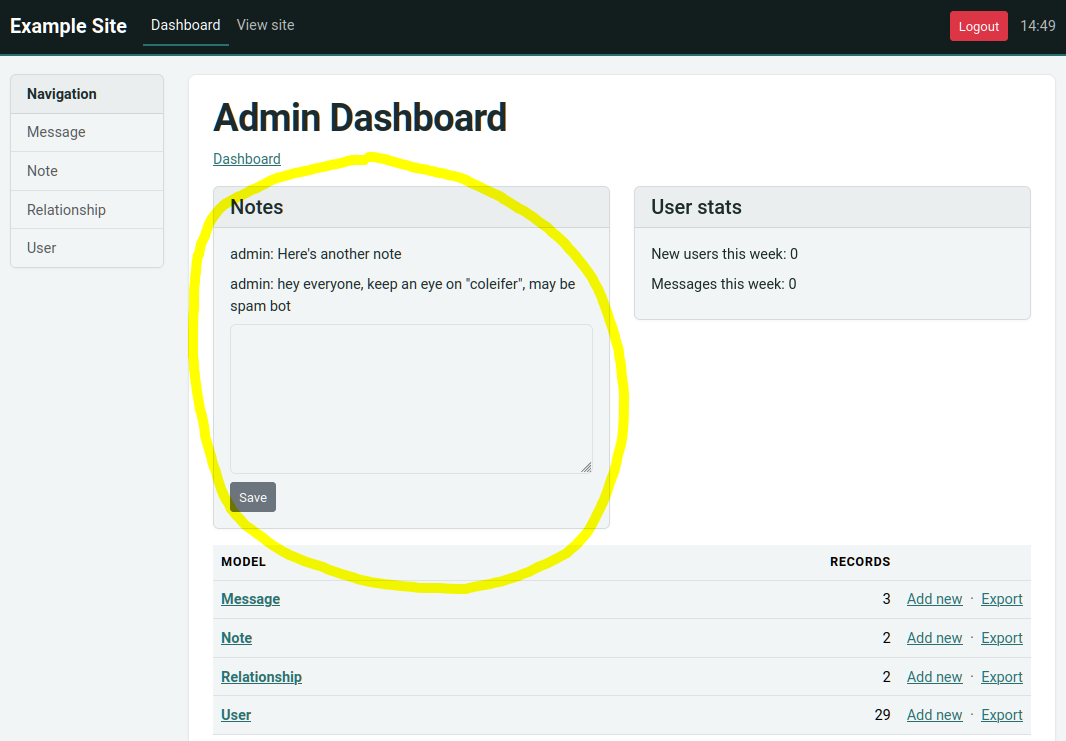
Here’s what the panel class looks like:
class NotePanel(AdminPanel):
    template_name = 'admin/notes.html'

    def get_urls(self):
        return (
            ('/create/', self.create),
        )

    def create(self):
        if request.method == 'POST':
            if request.form.get('message'):
                Note.create(
                    user=auth.get_logged_in_user(),
                    message=request.form['message'])

        next = request.form.get('next') or self.dashboard_url()
        return redirect(next)

    def get_context(self):
        # Get the 3 latest notes.
        notes = Note.select().order_by(Note.created_date.desc()).paginate(1, 3)
        return {'note_list': notes}
When the admin dashboard is rendered (/admin/), all panels are rendered using
the templates they specify. The template is rendered with the context provided
by the panel’s get_context method.
And the template:
{% extends "admin/panels/default.html" %}

{% block panel_content %}
  {% for note in note_list %}
    <p>{{ note.user.username }}: {{ note.message }}</p>
  {% endfor %}
  <form method="post" action="{{ url_for(panel.get_url_name('create')) }}">
    <input type="hidden" name="next" value="{{ request.url }}" />
    <p><textarea name="message" class="form-control"></textarea></p>
    <button type="submit" class="btn btn-secondary btn-sm">Save</button>
  </form>
{% endblock %}
A panel can provide as many urls and views as you like. These views will all be protected by the same authentication as other parts of the admin area.
Shipped panels
flask_peewee.panels ships a ready-made panel, RecentRowsPanel. Extra
arguments to register_panel are passed to the panel constructor.
from flask_peewee.panels import RecentRowsPanel

admin.register_panel('Recent messages', RecentRowsPanel, Message,
    order_by=Message.pub_date)
Rows are ordered descending by order_by, which defaults to the primary
key, and limit caps the row count (default 5). columns picks the
fields to show, defaulting to those of the model’s registered admin. The
first cell links to the row’s edit page when the model’s admin allows the
user to edit it.
Handling File Uploads
Flask and wtforms both provide support for handling file uploads (on the server
and generating form fields). Peewee, however, does not have a “file field”.
I generally store a path to a file on disk and thus use a CharField for
the storage.
Here’s a very simple example of a “photo” model and a ModelAdmin that enables
file uploads.
# models.py
import datetime
import os

from markupsafe import Markup
from peewee import *
from werkzeug.utils import secure_filename

from app import app, db


class Photo(db.Model):
    image = CharField()

    def __str__(self):
        return self.image

    def save_image(self, file_obj):
        self.image = secure_filename(file_obj.filename)
        full_path = os.path.join(app.config['MEDIA_ROOT'], self.image)
        file_obj.save(full_path)
        self.save()

    def url(self):
        return os.path.join(app.config['MEDIA_URL'], self.image)

    def thumb(self):
        return Markup('<img src="%s" style="height: 80px;" />' % self.url())
# admin.py
from flask import request
from flask_peewee.admin import Admin, ModelAdmin
from wtforms.fields import FileField, HiddenField
from wtforms.form import Form

from app import app, db
from auth import auth
from models import Photo


admin = Admin(app, auth)


class PhotoAdmin(ModelAdmin):
    columns = ['image', 'thumb']

    def get_form(self, adding=False):
        class PhotoForm(Form):
            image = HiddenField()
            image_file = FileField('Image file')

        return PhotoForm

    def save_model(self, instance, form, adding=False):
        instance = super(PhotoAdmin, self).save_model(instance, form, adding)
        if 'image_file' in request.files:
            file = request.files['image_file']
            instance.save_image(file)
        return instance

admin.register(Photo, PhotoAdmin)